Getting Started with Sara
Set up cart monitoring and your first offer in four steps.
Step 1
Install Sara from the Shopify App Store
Find Sara in the Shopify App Store and click Install. You'll be asked to approve the permissions Sara needs to read cart data and deliver offers to your storefront. Once approved, you'll be taken directly into the Sara dashboard inside your Shopify admin.

Step 2
Enable the app embed in your Theme Editor
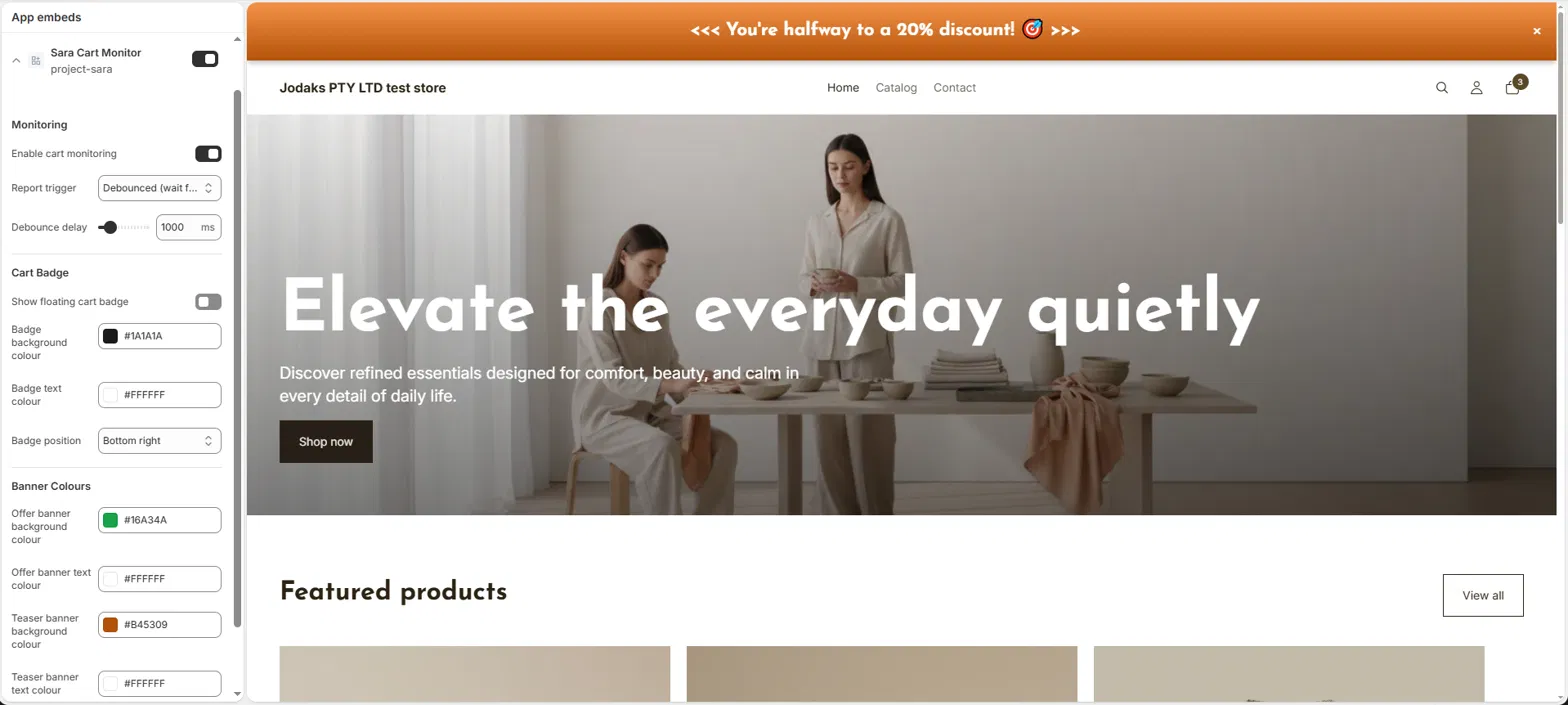
Sara delivers offers through Shopify's app embed system, so you need to activate it in your theme before anything appears on your storefront. In your Shopify admin, go to Online Store → Themes → Customize, then open the App Embeds tab in the left panel and toggle Sara Cart Monitor on.
While you're there, you can also customize Sara's visual appearance to match your brand — the App Embeds panel exposes color options for the offer banner so it fits naturally in your store's design. Save your theme when done.
Step 3
Create your first offer in Sara Settings
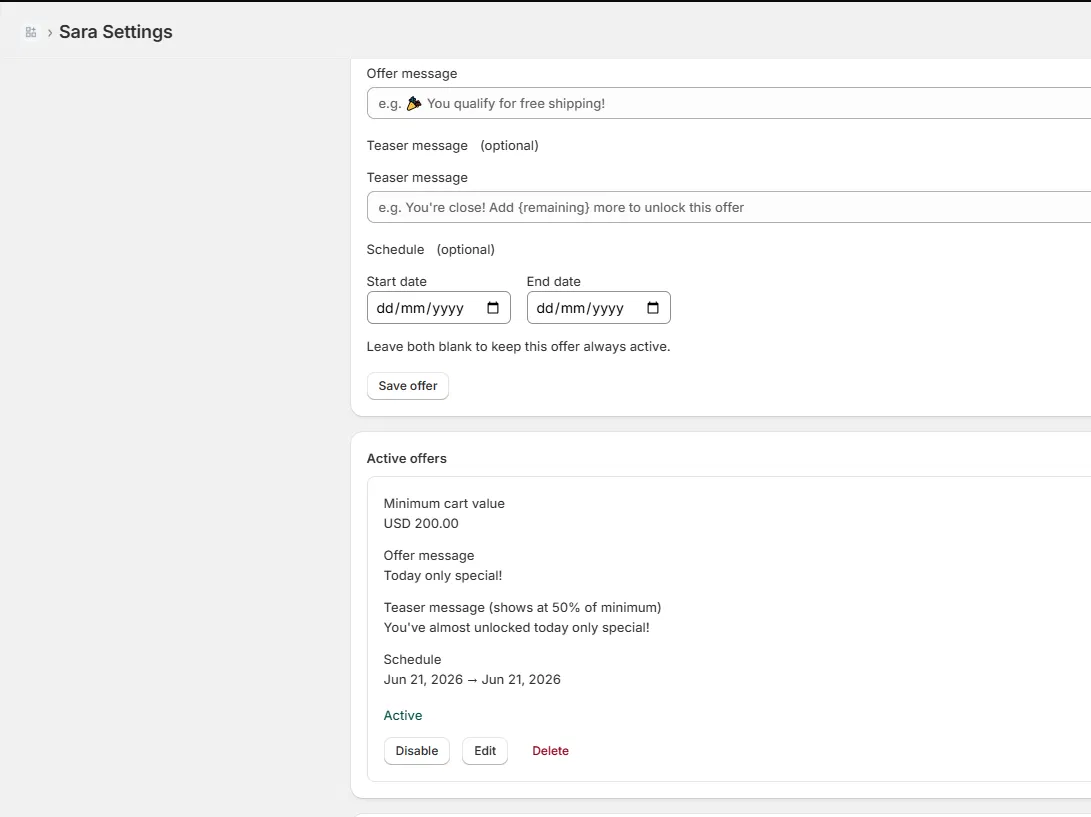
Back in the Sara dashboard, open Settings to configure your first offer. Each offer has the following fields:
- Minimum cart value — the cart total a customer needs to reach before the offer appears. For example, set $50 to show an offer when someone's cart hits $50.
- Offer message — the main message displayed when the threshold is met (e.g. "You've unlocked free shipping!").
- Teaser message (optional) — a shorter prompt shown while the customer is still working toward the threshold (e.g. "Add $10 more for free shipping"). You can also set a teaser percentage to show a progress indicator alongside it.
- Start and end dates (optional) — leave these blank to keep an offer always active. Set specific dates to schedule a promotion in advance — useful for seasonal campaigns like Black Friday or holiday sales that you want to prepare ahead of time and have activate automatically.
Save your settings when done. Changes take effect on your storefront within a few seconds.
Important: Sara displays your offer message when a customer's cart reaches the threshold — but Sara does not automatically apply any discount at checkout. To make the offer work, you need to separately create a matching discount in Shopify. In your Shopify admin, go to Discounts → Create automatic discount, set your discount type and amount, and configure a minimum purchase requirement that matches the threshold you set in Sara. Without this step, customers will see the offer message but the discount won't be applied when they check out.
Step 4
See it live on your storefront
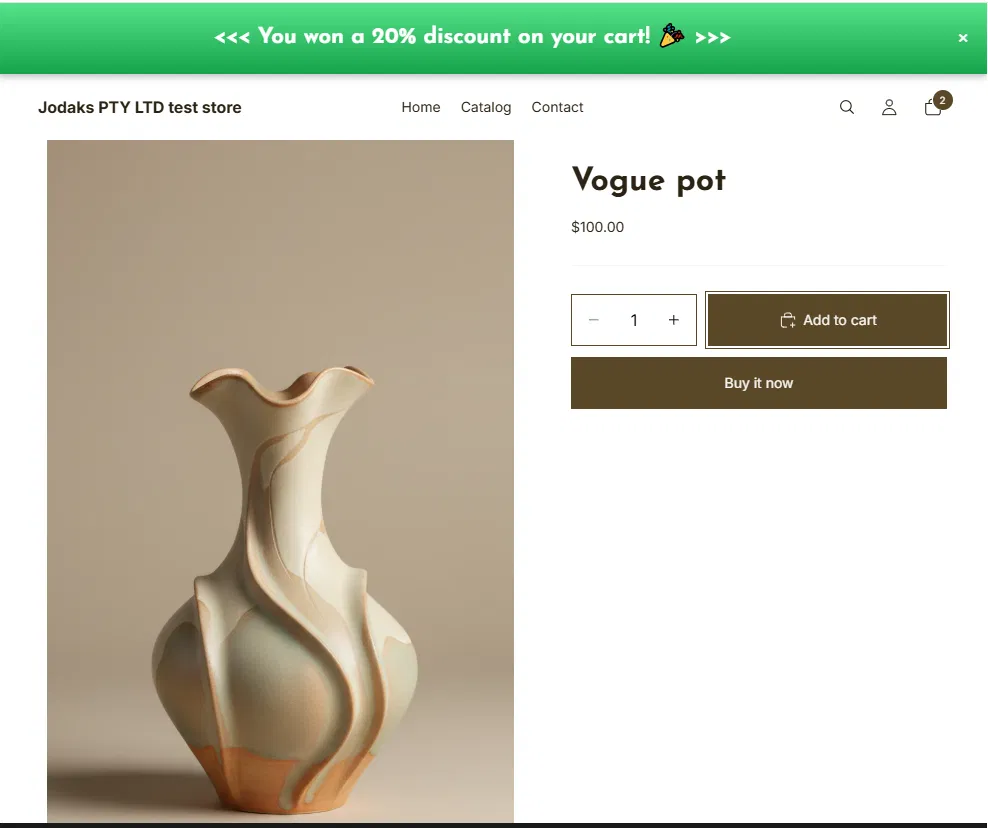
Open your store in a browser and add items to the cart. As the cart total approaches your configured threshold, the teaser message will appear. Once the threshold is met, the offer message displays. That's Sara working.
If nothing appears, double-check that the app embed is toggled on in your theme (Step 2) and that your offer is saved with a minimum cart value your test cart actually reaches.